
How To Guides
How to Convert a WebArchive File to PDF (Free, Mac & Online)
Learn how to convert a Safari .webarchive file to PDF for free on Mac, or save the original webpage as a PDF online with KhanPDF in seconds
Introduction
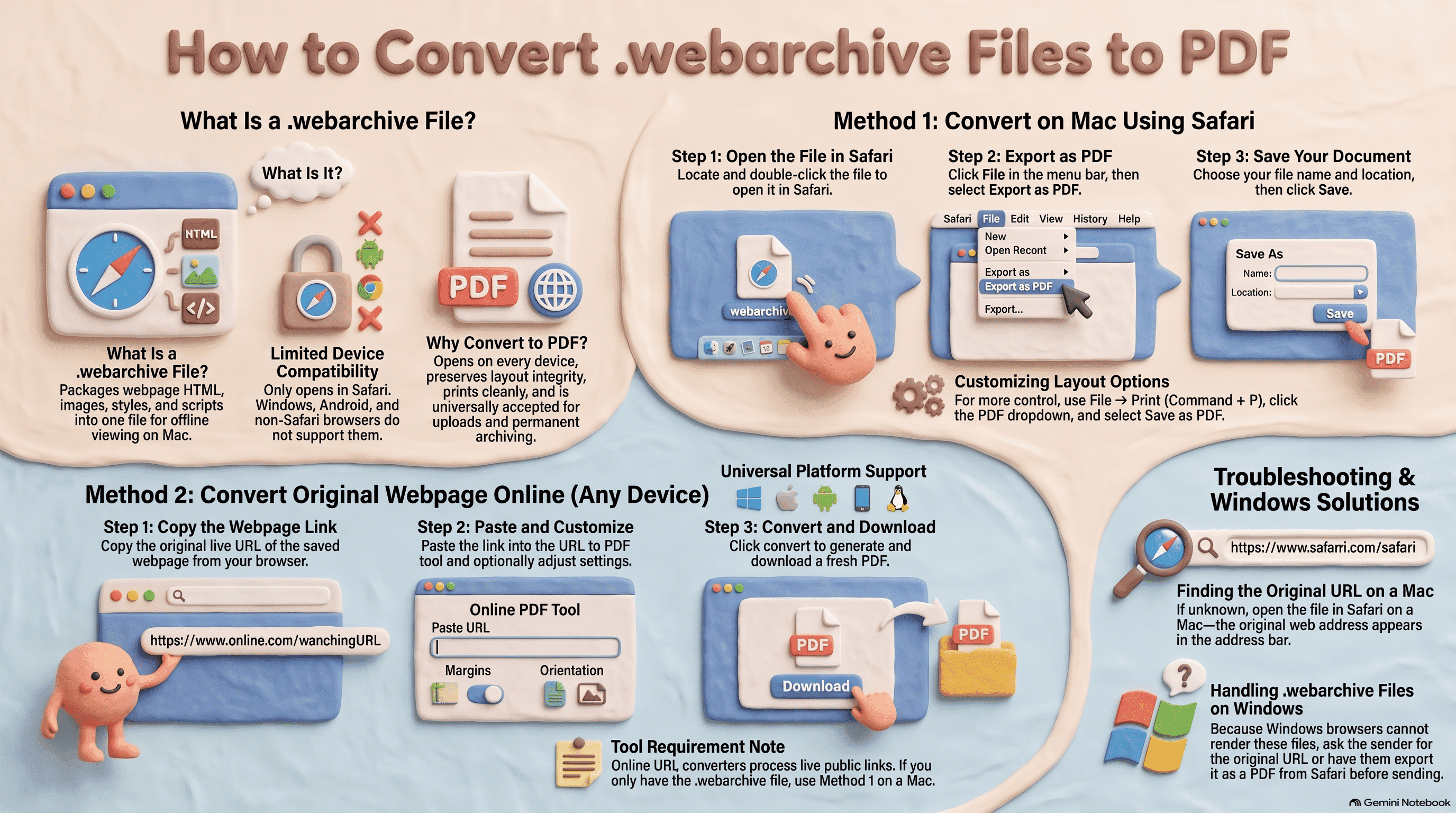
Have you ever saved a webpage in Safari and ended up with a file ending in .webarchive? This is Safari's own format for saving a complete webpage — text, images, and layout — into a single file on your Mac. It works well for offline reading, but there's one big problem: a .webarchive file only opens properly in Safari. You can't easily share it with someone on Windows, upload it to most websites, or open it on your phone.
That's why many people want to convert a WebArchive file to PDF. A PDF opens on any device, looks the same everywhere, and is easy to print, share, or store.
In this guide, you'll learn two simple and free ways to do it: converting the .webarchive file directly on a Mac, and creating a fresh PDF from the original webpage using our free URL to PDF tool — no software, no sign-up.
What Is a WebArchive File?
A .webarchive file is created when you choose File → Save As in Safari and select the "Web Archive" format. Safari packs the page's HTML, images, styles, and scripts into one file so the page can be viewed later without an internet connection.
The downside is compatibility. Windows, Android, and most browsers outside of Safari don't support .webarchive files. PDF is the better format when you want to:
- Share a saved page with someone on any device
- Print a webpage with a clean layout
- Keep a permanent copy of an article, receipt, or report
- Upload a document to a website or form that only accepts PDF
Method 1: Convert WebArchive to PDF on Mac (Using Safari)
If you have the .webarchive file on a Mac, Safari can convert it to PDF in a few clicks:
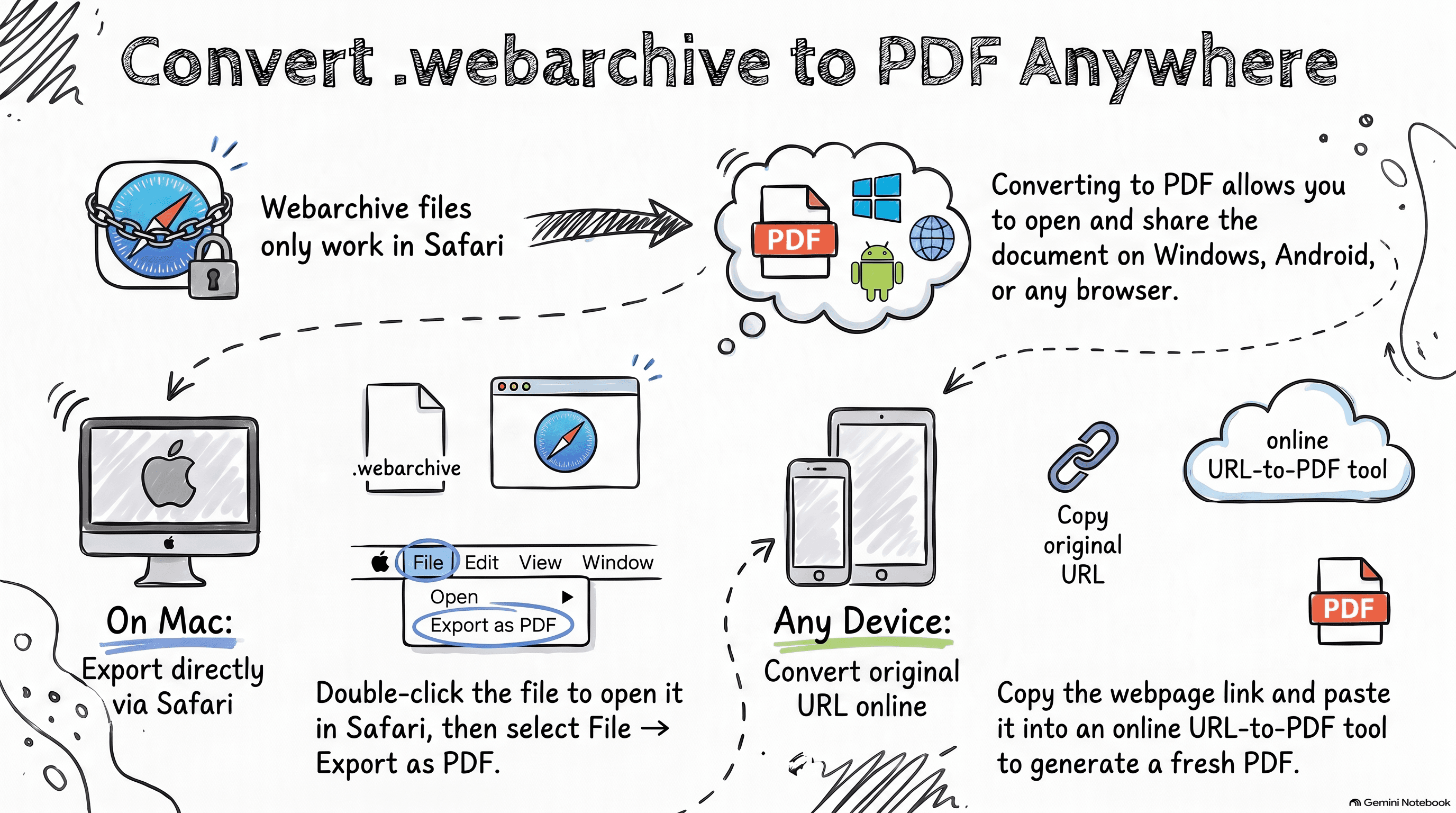
1. Open the file — double-click the .webarchive file. It will open in Safari.
2. Click File → Export as PDF in the top menu bar.
3. Choose a name and location for your PDF, then click Save.
That's it — your WebArchive is now a PDF.
Tip: If you want more control over the page size, margins, or orientation, use File → Print (or press Command + P), then click the PDF dropdown at the bottom-left and choose Save as PDF.
Method 2: Convert the Original Webpage to PDF Online (Any Device)
Don't have a Mac? If you still know the link of the webpage you saved, you can skip the .webarchive file entirely and create a brand-new PDF straight from the live page.
With KhanPDF's free URL to PDF converter:
1. Copy the webpage URL from your browser's address bar.
2. Paste it into the URL to PDF tool.
3. Adjust settings (optional) — choose page margins and portrait or landscape orientation.
4. Click convert and download your PDF in a few seconds.
This works on Windows, Mac, Android, iPhone, and Linux — all you need is a browser. It's also the best option when the page has been updated since you saved it, because you get the latest version.
Note: KhanPDF converts public webpages from a URL. It does not upload or open .webarchive files directly. If you only have the .webarchive file and no link, use Method 1 on a Mac.
How It Works
How to Find the Original URL of a WebArchive File
Not sure what link the .webarchive came from? On a Mac, open the file in Safari — the original web address usually appears in the address bar at the top. Copy that link and paste it into the URL to PDF tool to create a PDF from any device.
Can I Open a WebArchive File on Windows?
Windows doesn't support .webarchive files natively, and modern browsers like Chrome and Edge won't display them correctly. The easiest solutions are:
- Ask the person who sent the file for the original webpage link, then convert it to PDF online.
- Ask them to export it as a PDF from Safari before sending it.
PDF is a much safer format to share, because everyone can open it.
Wrap-up
A .webarchive file is handy for saving pages in Safari, but it's not built for sharing. Converting it to PDF makes your saved page readable anywhere.
- On a Mac: open the file in Safari and use File → Export as PDF.
- On any device: paste the original link into KhanPDF's free URL to PDF tool and download a clean PDF in seconds.
Want to save pages from other browsers too? Check out our guide on how to save a webpage as a PDF in Chrome.
FAQ
Frequently asked questions
Ready to try it yourself?
Convert, compress, and craft PDFs with KhanPDF — fast, free, fidelity-first.
Convert URL to PDF