
pdf downloader
How to Download a PDF from Link for Free
Learn how to download a PDF from a link for free. Convert webpages, articles, and online documents into downloadable PDFs using KhanPDF.
Introduction
Have you ever found a useful article, document, or webpage that you wanted to save as a PDF? Downloading online content as a PDF makes it easier to read offline, print, share, and keep important information for later.
With KhanPDF, you can use a free online PDF downloader to convert publicly accessible webpage links into downloadable PDF files. You don't need to install additional software, create an account, or pay for basic URL-to-PDF conversion.
Whether you want to download a PDF from a link, save an online article, or keep a document for future reference, KhanPDF makes the process simple.
If you want to get started, try our free URL to PDF converter and save your favorite webpages as PDF files.
Key Takeaways
- Download webpages, articles, and online content as PDF files using a public URL.
- Use a free online PDF downloader without installing additional software.
- Customize PDF paper sizes, margins, and page orientation.
- Save important online documents for offline reading, printing, and sharing.
- No account registration is required to use KhanPDF.
- Keep a downloadable copy of useful online information for future reference.
How to Download a PDF from a Link in 4 Easy Steps
How Do You Download a PDF from a Link?
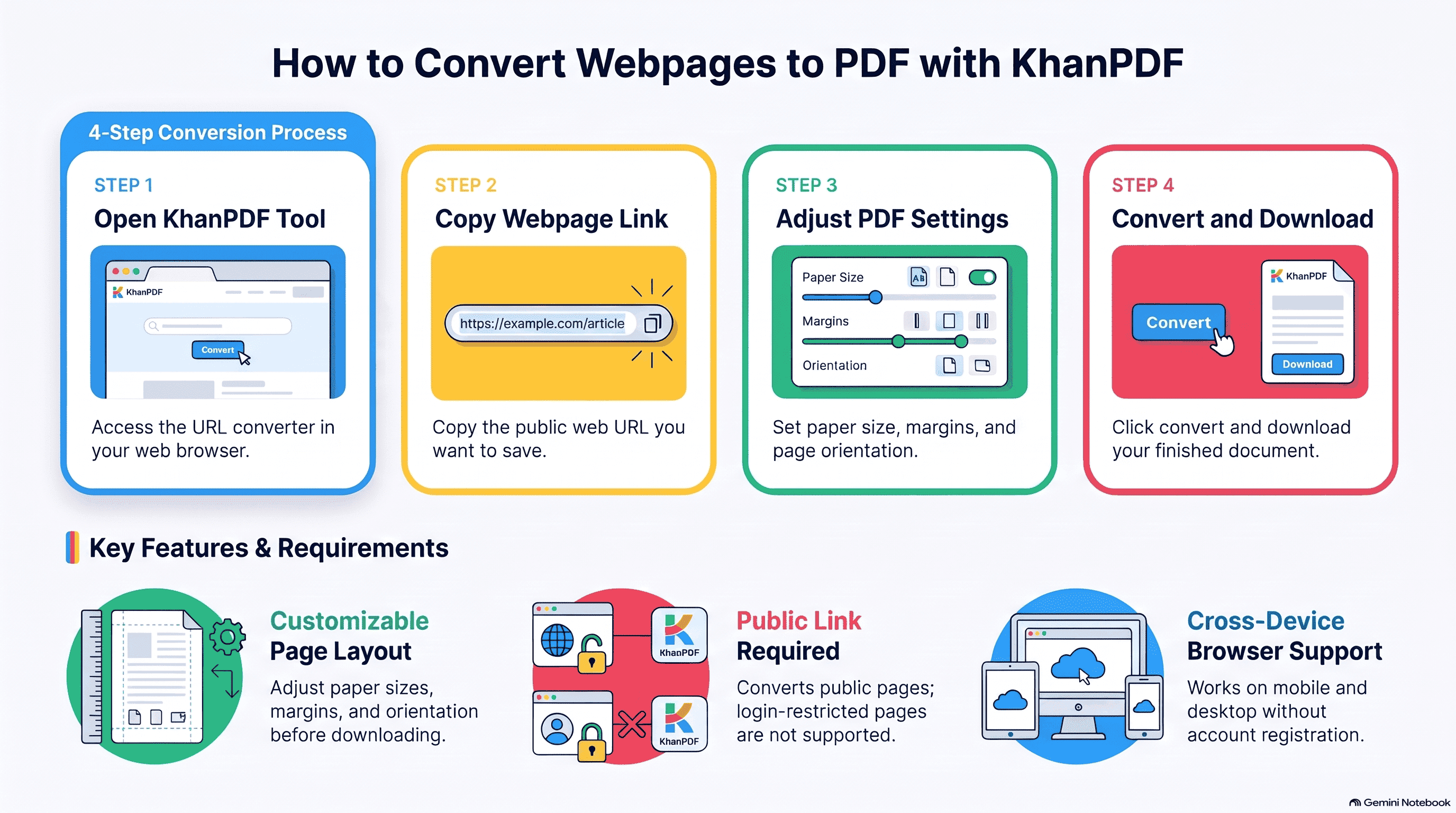
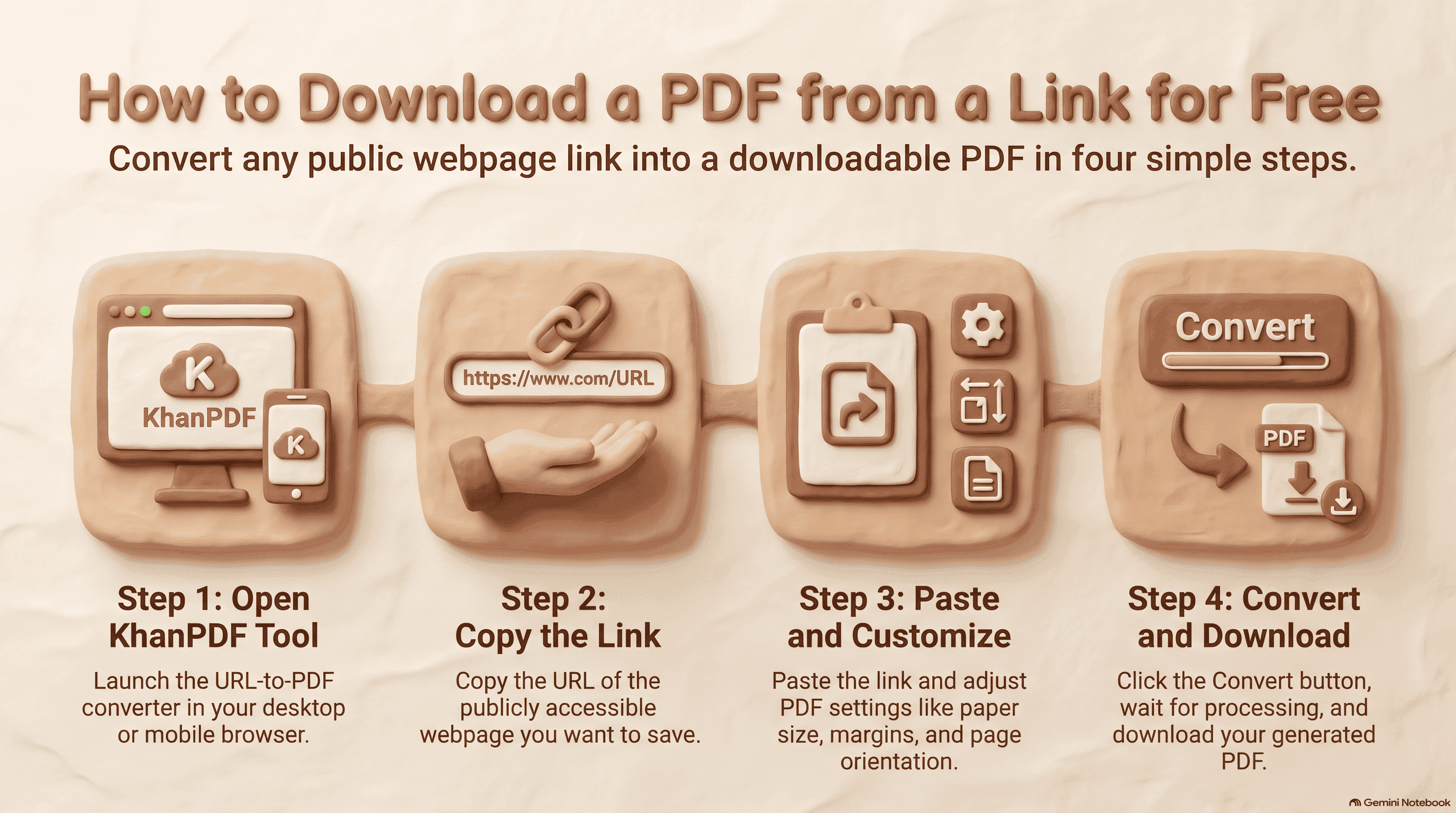
You can download a webpage as a PDF in just a few simple steps using KhanPDF. Our online PDF downloader helps you convert publicly accessible webpage links into PDF documents.
Follow these four steps:
1. Open the KhanPDF pdf downloader in your browser.
2. Copy the webpage URL or document link you want to save.
3. Paste the copied link into the URL input field and adjust your PDF settings, including paper size, margins, and orientation.
4. Click the Convert button, wait for processing to finish, and download your generated PDF.
That's it! You now have a downloadable PDF copy of your webpage that you can save, print, or share.
Which Settings Can You Customize When Downloading a PDF from a Link?
When converting a webpage into a PDF, the right settings help you create a document that is easier to read and print.
KhanPDF provides several customization options:
- Paper Size: Select a suitable paper size, such as A4, Letter, Legal, or other supported sizes, depending on your requirements.
- Page Margins: Adjust the top, bottom, left, and right margins to control the available space on each PDF page.
- Page Orientation: Choose portrait or landscape orientation depending on the layout and content of the original webpage.
These settings help you create a PDF document that is better suited for reading, printing, and sharing.
What Can You Do After Downloading a PDF from a Link?
Once you download a webpage as a PDF, you can use the document in several ways.
- Read Offline: Keep articles, tutorials, and educational resources available without needing an internet connection.
- Print Documents: Print saved webpages and articles whenever you need a physical copy.
- Share with Others: Send your downloaded PDF to colleagues, students, friends, or family members.
- Keep Important Records: Save useful information, reports, guides, and online resources for future reference.
- Organize Your Documents: Store downloaded PDFs on your computer, mobile device, or cloud storage to access them whenever needed.
Can You Download Any PDF from a Link?
Not every link works in the same way. If a link points directly to an existing PDF file, you can usually open or download that file using your browser.
However, if you want to save a webpage, article, or online document as a PDF, you can use KhanPDF's URL-to-PDF converter.
The webpage must be publicly accessible. Private pages, login-protected documents, restricted content, or websites that block automated access may not convert successfully.
For webpage conversion, visit the KhanPDF online PDF downloader and paste your public URL.
Where Can You Use KhanPDF?
KhanPDF is a browser-based PDF conversion tool that works across different devices.
- On Desktop: Open KhanPDF in your browser to convert webpages and online documents into PDF files on your computer.
- On Mobile: Use your mobile browser to paste a public webpage link and generate a PDF without installing a separate application.
- For Students: Save educational articles, tutorials, research resources, and study materials for offline reading.
- For Professionals: Keep copies of online reports, guides, documentation, and other useful resources.
You can explore more useful PDF resources and tutorials on the KhanPDF Blog or visit the KhanPDF homepage to discover available tools.
Watch: How to Download a PDF from a Link for Free
Wrap-up
Downloading useful online content as a PDF is an easy way to keep important information available for future use. Whether you want to save an article, tutorial, report, or webpage, having a PDF copy makes reading, printing, and sharing more convenient.
With KhanPDF, you can convert publicly accessible webpage links into downloadable PDFs without creating an account or installing additional software.
Try the free URL to PDF converter today and save your favorite webpages as PDF files.
FAQ
Frequently asked questions
Ready to try it yourself?
Convert, compress, and craft PDFs with KhanPDF — fast, free, fidelity-first.
Convert URL to PDF